How to Put a Product on Sale in Shopify (Compare-at Price)

To put a product on sale in Shopify, lower its Price and enter the old price in Compare-at price. The compare-at value must be higher than the price, or no sale is shown. Both numbers can appear on product and collection pages; only the sale price appears at checkout.
The steps and display rules are from Shopify’s Help Center page on sale pricing, and the EU rule from its Price Indication Directive page, both read on October 23, 2026.
Set a sale price
Shopify’s example is a T-shirt that sells for $30 and goes on sale at $10: Price becomes $10 and Compare-at price becomes $30. Your theme then shows both prices, often with a sale badge.
- In the admin, go to Products and click the product.
- To sell a single variant, click XX variants in the Variants section and pick the variant.
- In the Price section, click Compare at.
- In Compare-at price, enter the original price.
- In Price, enter the new, lower price.
- Click Save.
For a percentage sale, work out the new price before you type it: 25% off a $39.99 item is $39.99 × 0.75 = $29.99 after rounding, and the compare-at price stays $39.99. Decide the rounding rule once (to .99, to whole dollars) and use it on every product, so the sale page doesn’t show $29.99 next to $30.24.
To end the sale, put the original price back in Price and clear Compare-at price completely; a compare-at price of $0.00 is not the same as an empty field.
If the sale shows on the product page but not in the collection, the variants disagree. A collection page shows the most general information that applies to all variants, so when some variants have compare-at prices of $0.00, some are empty and some hold other values, the collection page won’t show the product as on sale. Give all variants either a consistent compare-at price or none.
Sale price or discount?
| Sale price (compare-at) | Discount | |
|---|---|---|
| Set in | Product Price and Compare-at price | Discounts |
| Visible before checkout | Both prices, on product and collection pages | Only through a third-party app or custom build |
| At checkout | Only the sale price | The saving, crossed out |
| Needs a code | No | Optional (code or automatic) |
| Ends | When you reset the prices | On its end date |
Use a sale price when you want the markdown visible everywhere, and a discount when it should be tied to a code, a quantity or a date. For codes, read Shopify discount codes.
How the sale shows on your store and beyond
Your theme decides whether and where the sale price appears; many add a badge with a message or percentage off, and the styling can often be changed in the theme settings. Fixed prices for international markets override the price and compare-at price you set in the admin, and sale prices for those markets can’t be created in the admin, so you import them by CSV.
Your theme doesn’t control the display on AI channels that find products through Shopify Catalog, such as ChatGPT and Microsoft Copilot. If your store is eligible for Shopify Catalog you choose whether to show compare-at prices to AI agents, and each AI channel decides whether to display it.
Many products at once
In our view, Shopify’s bulk editor is practical for a sale on a few dozen products. Go to Products, select the products, click Bulk edit, then Columns, and add Compare-at price if it isn’t shown. Copy each current price into Compare-at price, type the new Price, and click Save; when several cells are selected, an edit to the outlined cell updates all of them. You type the values yourself, so work out each sale price first; ending the sale means the same edit in reverse. For larger catalogs, Shopify also accepts a product CSV import.
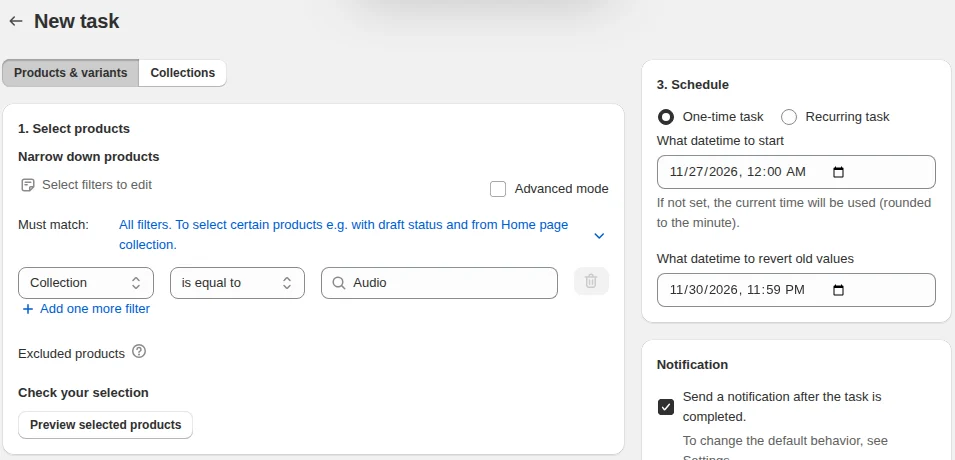
For a filtered set, our Bulk Product Edit sets sale prices and compare-at prices for products matched by filters, shows a preview first and can revert them; the steps are in bulk edit compare-at prices. For a whole-store event, plan a flash sale.
Rules in the EU
If you sell to customers in the EEA and announce a price reduction, you need to show the lowest price you charged in the previous 30 days or more. A “now 50 EUR, was 100 EUR” display is such an announcement. The directive is meant to stop a reference price inflated just before a discount, so the compare-at price has to be the real lowest price of the past 30 days. The details, including what to do when you reduce prices more than once a month, are in EU price reduction rules, one of the guides in our pricing and sales hub.
FAQ
How do I show a crossed-out price in Shopify? Enter the original price in Compare-at price and the new price in Price. Your theme controls how the crossed-out price looks.
Why doesn’t my sale price show on the collection page? Some variants probably have conflicting compare-at prices, such as $0.00 on one and empty on another, so make them consistent or clear all of them.
Does the compare-at price show at checkout? Checkout shows only the sale price. The compare-at price appears on product and collection pages, if your theme displays it.
Can I schedule a sale price? A sale price can’t be scheduled from the product page. A discount can have start and end dates; for compare-at prices you need to change them yourself or use a tool that schedules changes.