Shopify Flash Sale: Plan It, Prepare the Store, Run It

Shopify recommends special preparation for a flash sale when you expect tens of thousands of customers to start checkout within a few minutes. Below that, you set the prices, announce the sale and run it like any other promotion. Above it, most of the work sits in the checkout path: shipping rates, payment providers, checkout apps and a theme that loads fast.
The preparation steps below follow Shopify’s Help Center page on flash sales, and the pricing steps follow sale pricing, discount codes and managing discounts. All four pages were read on October 23, 2026.
Does your sale need special preparation?
Shopify gives its own yardstick. A store with 10,000 visitors and 100 orders a day that expects 50,000 visitors and 1,000 orders over 24 hours needs no special preparation. The same store featured on a major network, with tens of thousands of customers competing for stock that sells out in minutes after every restock, does.
If your sale looks like the first one, five times the usual traffic spread over a day, read the price section and the EU section and skip the rest. If you expect the second kind, start weeks ahead. Turning off shipping apps, adding a backup payment provider and building an event theme all need testing, and none of it can be done safely the night before.
Set the prices
There are two ways to show a price cut, and shoppers see them in different places.
| Sale price (compare-at) | Discount (code or automatic) | |
|---|---|---|
| Where you set it | Price and Compare-at price on the product or variant | Discounts |
| Product and collection pages | Both prices, if the theme shows them | Full price, unless a third-party app or custom build shows the saving |
| Checkout | Only the sale price | Discount line with the crossed-out price |
| Start and end | Manual edit, or an app that schedules it | Start and end dates on the discount |
| Fits best | “Everything in this collection is $10” | “20% off with code FLASH20 until midnight” |
Shopify’s own example: seasonal t-shirts sell for $30, and last season’s designs go on sale for $10. You change Price to $10, set Compare-at price to $30, and the theme shows both prices with a sale badge. In the admin that is Products, the product (or XX variants in the Variants section for one variant), Compare at, the original price in Compare-at price, the new price in Price, then Save. The compare-at value has to be higher than the price, or nothing is shown as on sale.
Check the variants before launch. If some variants have a compare-at price of $0.00 and others are empty or hold different values, the collection page stops showing the product as on sale, while the product page still shows it for the selected variant. A compare-at price of $0.00 is treated differently from an empty field, so clear the field completely on variants that should not show a sale.
Three details catch flash sales in particular:
- A discount with a start and end time follows the time zone set in your admin. A discount starting on November 26 in a store set to Eastern time starts at 12:00 a.m. EST, which is 5:00 a.m. in London.
- If you reuse last year’s expired flash-sale discount, reactivating it sets the status to Active with no end date. Add the end date again, or the sale never stops.
- Fixed prices in a market override the prices and compare-at prices set in the admin, and sale prices for those markets can’t be created in the admin. Shopify’s route is a CSV import of the market prices.
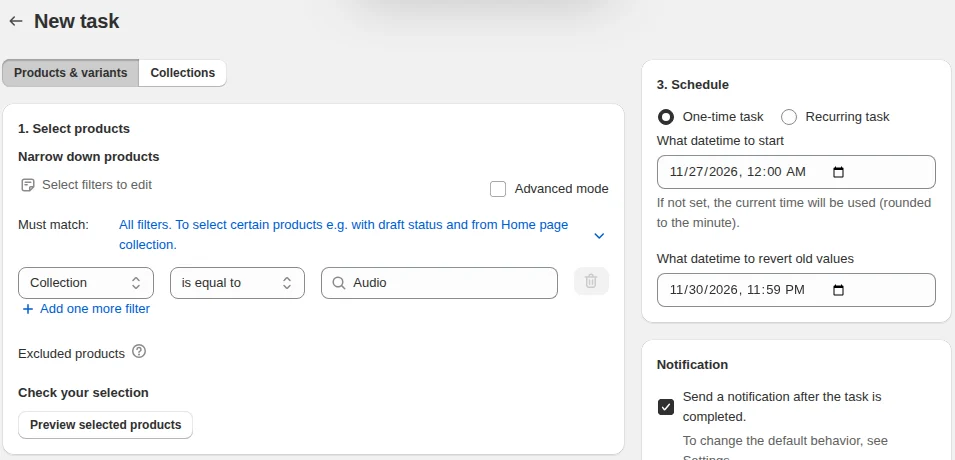
A discount ends on its own; a compare-at sale price stays until someone changes it back. For a sale that runs overnight, that edit lands on whoever is awake. Our Bulk Product Edit schedules the sale price for a filtered set of products and reverts it at the time you set, on its paid plans; the walkthrough is in schedule price changes on Shopify.
Prepare the store
For a sale that needs preparation, Shopify lists these steps. The order below is the one we would work in, from the changes that need the most lead time.
- Apps in checkout. Send each developer your expected order volume and the sale length, and ask what the app can handle. If they are not confident, deactivate the app for the event. Custom apps get the same review, including their API call rate.
- Shipping rates. Shopify says shipping apps typically perform poorly during extremely high volume, and a checkout can’t finish without rates. Consider deactivating shipping apps and carrier-calculated rates for the sale and using custom flat rates set in the admin. If you buy labels in Shopify, deactivate your own carrier accounts and use Shopify’s.
- Payment providers. Without Shopify Payments, ask your provider what volume it supports, consider a second provider in case the first can’t keep up, and place test orders through both. External options that send the customer to a third party, such as pay later or partial payments, can oversell because of the round trip; consider turning them off for the sale.
- Manual capture. Switching to manual payment capture avoids card fees on oversold or canceled orders and lets you check that orders are legitimate before payment is taken and fulfillment starts.
- International sales. If you collect duties and import taxes, consider turning that off until the sale ends. If you keep it on, every sale product needs a country or region of origin, an HS code and a product type; without an HS code or product type, duties aren’t calculated for that product.
- An event theme. Build a collection for the sale items and, if you can, a theme with simpler product pages. Shopify suggests switching off collection filtering menus, recommended products, social feeds, slideshows or carousels, and popups or upsell functions.
- Preview products. To tease the range, create separate preview products. A product published with stock can be bought, and theme edits that hide Add to cart shouldn’t be relied on.
- Private mode. If something breaks during the sale, private mode stops new visitors from starting a checkout while people already in checkout can finish. Find the setting before the sale starts.
After the sale, undo the temporary changes in reverse: payment capture, shipping apps, duties, the regular theme. Then open a collection page and a product page to confirm the old prices are back, because the collection page is where mismatched variants show first.
Announce it legally in the EU
If you sell to customers in the European Economic Area and announce a price reduction, the Price Indication Directive says to show the lowest price you charged in the 30 days (or more) before the reduction. Shopify’s page counts “flash sale”, “Black Friday deal” and “20% off everything” as announcements. Individual discount codes and offers such as “buy three, get 30% off” may fall outside the rule, and national rules differ. Read Shopify’s Price Indication Directive page and check with a lawyer before a large sale. The EU price reduction rules article covers the 30-day reference price in more detail.
For the calendar around a big sale, use the holiday season checklist; for code-based offers, see Shopify discount codes. The pricing and sales hub collects the rest of our guides on prices and promotions.
FAQ
How far ahead should I plan a Shopify flash sale? For a sale that brings tens of thousands of checkouts in minutes, Shopify suggests starting weeks ahead. A sale that multiplies normal traffic a few times over a day needs no special preparation, by Shopify’s own example.
Should I use a discount code or a sale price for a flash sale? A sale price shows the old and new price on product and collection pages and only the new price at checkout. A discount shows its saving at checkout and ends on its own date, but showing it crossed out on product pages needs a third-party app or custom work.
Can I stop customers from buying during a flash sale preview? The theme can’t be relied on to block purchases of a published product with stock. Create separate preview products that are not the ones you sell when the event starts.
What does private mode do during a sale? It stops new visitors from creating a checkout, while customers who are already checking out can finish their purchase.
Why is my sale price missing on the collection page? Shopify says the likely cause is inconsistent compare-at prices across the product’s variants, for example $0.00 on some and an empty field on others. Give every variant a higher compare-at price or clear the field on all of them.