Prepare Your Shopify Store for the Holidays: Week by Week

To prepare a Shopify store for the holiday season, work backwards from your biggest sale day: lock stock and shipping eight weeks out, build discounts and sale prices four weeks out, test checkout and emails two weeks out, and in the sale week decide how many orders you can handle and say so on the store. Shopify’s own Black Friday Cyber Monday (BFCM) checklist covers the same ground in three groups: plan promotions, set up the customer experience, process orders efficiently.
The timeline is built from Shopify’s pages on seasonal sales, flash sales, managing increased sales, sale pricing and the Price Indication Directive (read October 23, 2026). The week counts are our planning suggestion, not Shopify’s.
Eight weeks out: stock, suppliers, shipping
- Agree stock with suppliers. Look at what sold in last year’s sale weeks in your reports, and confirm delivery dates for reorders early.
- Decide what happens when items sell out. Shopify lets you hide out-of-stock products, and the bulk editor under Products > Inventory has a Continue selling when out of stock column. Make sure it is unchecked on anything you cannot restock quickly; overselling a gift in December means refunds and angry emails.
- Set shipping cut-off dates. Find your carriers’ published holiday dates for each service, add a day for packing, and write the last order date for delivery before the holiday into your shipping policy and a store banner.
- Review shipping rates. Shopify’s checklist suggests carrier-calculated shipping so rates match real costs. For very large flash sales, though, Shopify advises the opposite: shipping apps tend to slow down at extreme volume, and a checkout cannot finish without a rate, so it recommends flat rates set in the admin for the duration.
- Update policies. Your return window for gifts bought in November and your holiday delivery times go into Settings > Policies; Shopify’s BFCM list starts the customer experience part with policies.
Four weeks out: discounts, sale prices, gift cards
Pick the mechanism for each offer. Shopify has two ways to cut a price, and they look different to shoppers:
| Sale price (compare-at) | Discount (automatic or code) | |
|---|---|---|
| Where it shows | Product and collection pages, with the theme’s sale badge | Crossed-out price at checkout |
| Set in | Product Price and Compare-at price fields | Discounts |
| Good for | “This product is reduced” across a collection | “20% off everything”, BOGO, free shipping over $X, codes for email subscribers |
| Watch out | Compare-at must be higher than price, consistently on every variant | Strikethrough on product pages needs an app or custom code |
If some variants of a product have a compare-at price and others have an empty or $0.00 one, the collection page does not show the product as on sale, even though each product page looks fine. Clear the field entirely on variants that should not show a sale.
Build the sale collection. Shopify’s checklist calls for a dedicated sale collection, and its flash sale guide adds a stripped-down event theme: drop collection filters, recommended products, social feeds, slideshows and popups during the peak, so pages load faster.
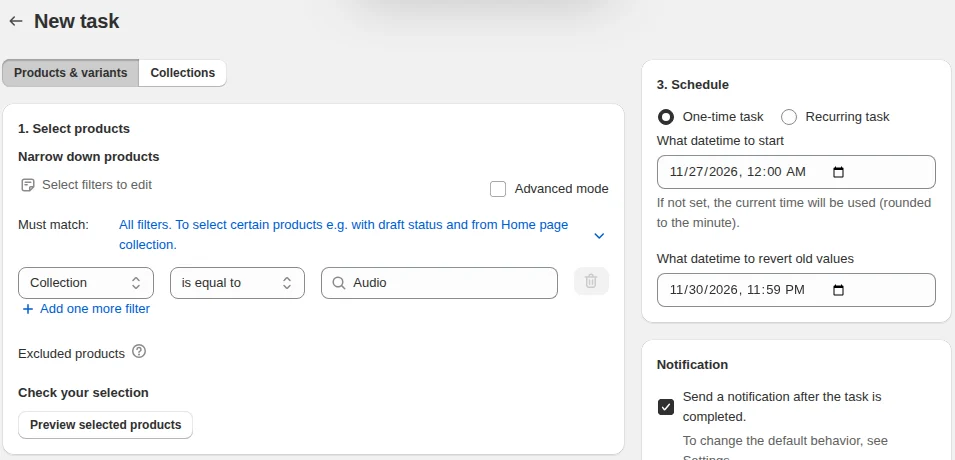
Schedule the price changes. Changing hundreds of prices by hand at midnight on Black Friday, then changing them back on Tuesday, is where mistakes happen. Discounts can have start and end dates. For compare-at sale prices, a bulk editor with scheduling does the switch and the revert; our Bulk Product Edit schedules a sale on a filtered set of products and reverts it at the time you set, on its paid plans.
Codes for your list. If you send codes by email, create them now and check how they combine with automatic discounts; our Shopify discount codes guide covers combinations and limits.
Gift cards. Set up gift card products for late shoppers who miss your shipping cut-off; a digital gift card needs no shipping.
Two weeks out: test everything
- Place test orders with a real discount code, an automatic discount and a sale-priced product in one cart. Check the total, the email and the order in the admin.
- Turn on abandoned checkout recovery in Shopify Messaging if it is off; Shopify’s BFCM list includes it.
- Check accelerated checkouts are turned on and appear at checkout; they are on Shopify’s BFCM list.
- Ask app developers about volume. For big flash sales Shopify suggests telling each checkout app’s developer how many orders you expect, and turning off any app they are unsure about. If you do not use Shopify Payments, ask your payment provider the same, and consider a second provider.
- International orders. If you collect duties at checkout, every sale product needs an HS code, country of origin and product type; without an HS code or product type, duties are not calculated. Shopify’s flash sale page even suggests switching duty collection off for the sale if you cannot check this.
- Preview products. If you want to tease products before launch, create separate preview products; a published product with stock can be bought early.
The sale week: limits, support, expectations
Shopify’s guidance on increased sales comes down to how many orders you can pack per day. If that number is lower than demand, limit orders deliberately:
- Set each product’s inventory each morning to what you can ship that day, with overselling off, so products sell out at your daily limit.
- Or, once you hit your number, remove the shipping rates (not the zones) under Settings > Shipping and delivery, so nobody can check out, and edit the “no rates” message in your theme content. Check first that apps and sales channels do not depend on those rates.
- Whichever you choose, put a banner on the homepage that says why and when ordering reopens.
Other sale-week moves from Shopify’s lists: install Shopify Inbox for chat, use the order timeline to pass notes between staff, fulfill orders in bulk, and consider capturing payments manually during a large flash sale so you can check orders before charging. Private mode (restricting access to the store) is the emergency brake if something breaks: shoppers already in checkout can finish, new ones cannot start. For running a short, high-traffic sale, see Shopify flash sales, and for the packing side, how to handle an order spike.
Selling to the EU: announce reductions correctly
If you sell to customers in the European Economic Area, a “Black Friday deal”, “20% off” or “was €100, now €50” is a price reduction announcement under the Price Indication Directive. The reference price you show must be the lowest price you charged in the previous 30 days or more. Raising a price in October so the November reduction looks bigger is one of the practices the directive is written to stop. Put the 30-day lowest price in the Compare-at price field for EEA shoppers; EU price reduction rules explains national variations.
More on discounts and sales in the pricing and sales hub.
FAQ
When should I start preparing my Shopify store for Black Friday? Start about eight weeks before the sale with stock and shipping, and have discounts and sale prices built four weeks out. Shopify recommends starting weeks in advance for flash sales large enough to need special preparation.
Do I need to prepare my store for high traffic? Shopify says special preparation is usually needed only when you expect tens of thousands of shoppers to start a checkout within a few minutes. Below that, check your apps, payment provider and shipping rates, and focus on stock and packing capacity.
Should I use sale prices or discount codes for Black Friday? Use compare-at sale prices when you want the reduction visible on product and collection pages, and discounts for store-wide offers, BOGO deals or codes for your email list. Sale prices show only the new price at checkout, while discounts show a crossed-out price there.
How do I stop overselling during a sale? Turn off Continue selling when out of stock on the products, and keep inventory counts accurate. For a hard daily limit, set each product’s inventory to what you can ship that day.