Shopify Multi-Warehouse Inventory: Locations and Transfers

Shopify handles multiple warehouses natively: each warehouse is a location, every product variant has its own stock count at each location, and order routing decides which location ships each order. You add locations under Settings > Locations (up to 10 on Basic, Grow and Advanced, 200 on Plus), choose which products are active where, and move stock between them with inventory transfers. A separate warehouse management system only becomes worth it when picking and scanning inside a warehouse outgrow what the admin does.
Limits and settings: Shopify Help Center pages on locations, multi-location inventory, transfers, bin locations and order routing, read October 23, 2026.
Locations and plan limits
| Plan | Active locations |
|---|---|
| Starter | 2 |
| Basic, Grow, Advanced | 10 |
| Shopify Plus | 200 |
Deactivated locations do not count toward the limit, and the Locations settings page shows how many you have used. Apps that physically hold stock for you (3PLs, dropshipping apps, custom fulfillment services) also appear as locations, in a separate App and custom fulfillment locations section.
To add a warehouse, go to Settings > Locations, click Add location, and enter a name and address. Two settings on that screen matter for a warehouse:
- Inventory at this location is available to fulfill online orders is on by default. Turn it off for a retail-only store or a stock room you do not ship from; its stock still counts in your total inventory but not in the quantity shown online.
- Physical storefront is for shops customers can visit, not for a warehouse.
Google verifies the address. An unverified address can block local delivery and Shopify shipping labels for that location, so fix it before you ship from there.
Stock products at the right locations
Inventory is tracked per location, and a product can be sold and fulfilled only from locations where it is active.
Three rules decide how stock behaves:
- New products are assigned to all your locations with a quantity of 0.
- A new location starts empty: existing products are not stocked or activated there automatically. Activate them and add stock, or receive a transfer.
- Activation and quantity are separate. You can record stock at a location where the product is not active (the Available column shows a dash), and you can deactivate a product at a location without losing its count. You cannot unstock a product from a location that has unfulfilled orders or open transfers for it.
To activate a product at a warehouse, open the product and click Edit locations in the Inventory section, then set the quantity. For many products, use Products > Inventory, pick the location and edit quantities there, or the bulk editor (up to 50 products at a time), or an inventory CSV for large catalogs.
How to split stock depends on what each warehouse is for. A few patterns from Shopify’s own examples:
- Keep popular products at all locations for faster fulfillment.
- Keep specialty or bulky items at one location.
- Split by region: a Los Angeles warehouse serves US customers, a Toronto store serves Canadian ones.
- Reserve stock for in-store sales by keeping a retail location off online fulfillment.
Fulfillment apps can share a product with your own warehouses. Shopify moved all fulfillment services to multi-location inventory between February and mid-March 2026, so you can hold 50 units of a T-shirt yourself while a print-on-demand app or a 3PL covers the rest; each keeps its own count and routing chooses between them.
If your warehouse is large, add bin locations (shelf or rack names such as A-01) through an inventory CSV with a Bin name column, and show that column on the Inventory page. Each variant gets one bin per location. Use leading zeros: bins sort character by character, so A-10 comes before A-9 unless you write A-09.
Move stock between warehouses
Inventory transfers record stock moving from one location to another, or arriving from a supplier. A transfer can be marked ready to ship, put in transit and then marked as transferred, and the destination can receive all of it or only part, so a short delivery is recorded as short. You can add tracking and split a transfer into several shipments. Transfers created by third-party apps show on the same Transfers page, and Shopify POS can fulfill and receive them, including with a barcode scanner. Sidekick can look at stock balances across locations and create transfers for you.
Use transfers instead of editing two quantities by hand. A manual minus at one warehouse and plus at another leaves no record that the goods were on a truck, and if they never arrive nobody notices. A custom report can show inventory changes from transfers by location.
Which warehouse ships the order
Order routing assigns each order to a location by applying rules from top to bottom. The default order is:
- Minimize split fulfillments: prefer locations that have every item in stock.
- Stay within the destination market.
- Ship from the closest location, measured in a straight line.
You can add Use ranked locations (for example, warehouses before retail stores) and Use location metafields (for example, a has_capacity flag) as extra rules. Shopify says there is no need to change routing if the default suits you. When to change it is covered in our guide to Shopify order routing.
When you need a WMS or a 3PL
Shopify’s admin knows how much stock each location has and where in the warehouse it sits. It does not plan pick waves, direct staff around aisles, check each scanned item against the order, or manage slotting. Signs you need more:
- several people picking at once and mispicks reaching customers;
- hundreds of orders a day from one building;
- stock spread over many bins where a picker needs a route, not a list.
At that point you choose between a warehouse management app on top of Shopify and handing the warehouse to someone else. Our roundups of the best Shopify inventory management apps and of 3PL for Shopify compare both routes.
Update stock across locations in bulk
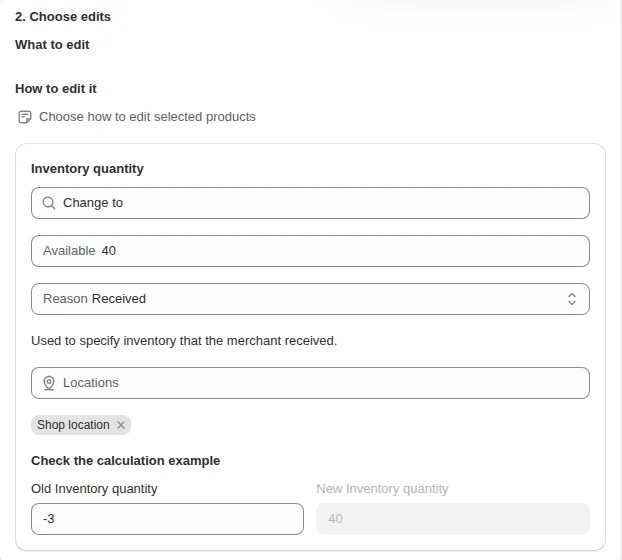
When a delivery or a stock count changes hundreds of variants at one warehouse, our Bulk Product Edit sets or adjusts inventory per location for a filtered set of variants, with Shopify’s adjustment reasons, a preview and an undo; the steps are on bulk edit inventory. The inventory and catalog hub has the rest of the series.
FAQ
Can Shopify manage multiple warehouses? Shopify tracks inventory separately at every location, so each warehouse is a location with its own stock. Basic, Grow and Advanced allow 10 active locations, Starter 2 and Plus 200.
How does Shopify decide which warehouse fulfills an order? Order routing applies rules in order: minimize split shipments, stay within the destination market, then ship from the closest location. You can add ranked locations or location metafields as extra rules.
Can a 3PL and my own warehouse stock the same product? All fulfillment services now support multi-location inventory, so a product can have stock at your warehouse and at a 3PL, and routing picks the location for each order.