Does Shopify Back Up Your Store? What to Back Up and How

A Shopify store backup is your own job. Shopify keeps the platform running and your data stored, but its Help Center says it does not offer an option to back up your store data, so you cannot roll your store back after your own mistakes: a bad CSV import, an app that overwrites descriptions, a bulk price change gone wrong, a theme edit that breaks the product page. For those, back up yourself. Free CSV exports of products and customers, kept theme copies and order exports cover the basics; a backup app adds automatic snapshots and restores.
Shopify facts come from the Help Center pages on product CSV files, customer exports and themes, read on October 23, 2026. Backup app details are from its App Store listing the same day.
What Shopify protects and what it does not
| Risk | Covered by Shopify? | Your protection |
|---|---|---|
| Server failure, outages | Shopify runs the platform | Nothing to do; watch Shopify Status |
| A product or page you delete by mistake | No restore button | Your own export or a backup app |
| A CSV import that overwrites good data | No undo | An export taken just before the import |
| An app that edits products in bulk | Depends on the app | The app’s own history, or a backup |
| A theme edit that breaks a template | Your previous theme stays in your themes list if you worked on a copy | Keep a copy of the published theme before editing |
Free manual backups
- Products. Export a product CSV from Products, using the Export button. It includes product metafields that are defined in your store. Two gaps: variant metafields are not supported in product CSV files, and if you use several locations, inventory quantities belong in the separate inventory CSV.
- Inventory with several locations: export the inventory CSV as well.
- Customers. Export the customer list from Customers. Up to 50 customers download directly; more are emailed to you (and to the store owner if you are not the owner).
- Orders. Export orders from the Orders page for your records; they cannot be “restored” into Shopify, but they give you the data if something goes wrong elsewhere.
- Themes. Before editing or updating, keep a copy of your published theme in Draft themes. That copy is your theme backup.
- Store the files outside Shopify (a cloud drive), named by date, and keep the last few.
What CSV exports do not capture well: your settings (shipping, taxes, payments, notifications), navigation menus, discounts, blog content, app data and anything stored in apps. Write down your key settings once, so you could recreate them.
Backup apps
| App | Price | What the listing says it backs up | Restores | Rating |
|---|---|---|---|---|
| Rewind Backups | Backup + Restore $19/month (up to 300 orders/month); Protection Suite $99/month (up to 600) | Products, themes, collections, customer data, metafields and more; Klaviyo and Mailchimp data; 365 days of history | One-click restore of the store or single items; bulk restores | 4.3 (631 reviews) |
A backup app makes sense when your catalog changes often, several people or apps edit products, or a day of broken product data would cost more than the monthly fee.
When to back up
- Before any CSV import that updates existing products.
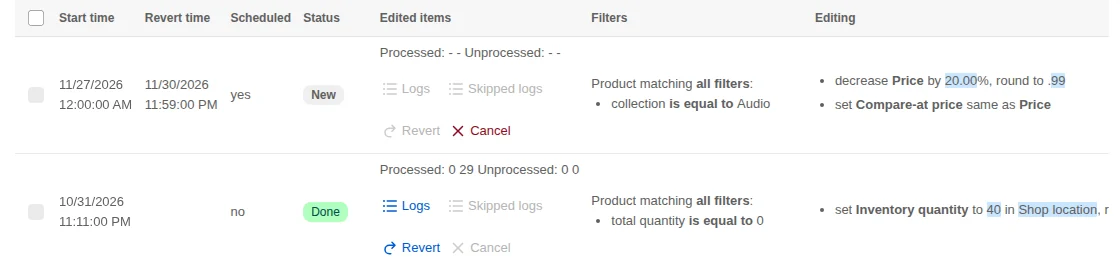
- Before a bulk edit. If the editing tool keeps its own history, you can revert there; our app Bulk Product Edit keeps a per-task history so a price change can be reverted, and its listing shows which plans include it.
- Before installing an app that edits products or the theme.
- Before a theme update or code edit, by working on a copy.
- Monthly, as a routine; our store maintenance checklist has the rest of that list.
Theme updates themselves are covered in theme updates and backups, and handling customer data exports carefully in export customer data. Store routines are collected in the running a store hub.
Frequently asked questions
Can I restore deleted products in Shopify? Shopify’s admin has no restore for deleted products. Re-import them from your latest product CSV export, or restore them with a backup app if you use one.
How do I back up my Shopify theme? Keep a copy of your published theme in the Draft themes section of the Themes page before you edit or update it. If something breaks, publish the copy again.
Do I need a backup app for Shopify? Not always. A small store that exports products and customers monthly and before every import is covered for the common mistakes. A backup app pays off when the catalog changes daily, many people or apps edit it, or you want automatic snapshots and one-click restores.