Shopify SEO Mistakes: 10 to Check and How to Fix Each

The Shopify SEO mistakes that cost the most are the ones that keep a store out of search altogether: a store still in private mode or on a trial, a migration without redirects, or a careless edit to robots.txt. After those come the page-level ones: copied manufacturer descriptions, thin pages, handles changed again and again, and titles left to defaults. Each has a fix inside the Shopify admin.
The list below combines the reasons Shopify’s own SEO FAQ gives for a store not ranking with the problems its pages on robots.txt, hiding pages, keywords and URL redirects warn about, all read on October 23, 2026. The list is ordered by how much search visibility each mistake can cost, in our judgment.
The ten mistakes
1. The store is still in private mode. Shopify lists it among the reasons a store doesn’t show in search results, and a sitemap reader such as Google can’t access a store in private mode. Fix: launch the store, then check with a site:yourstore.com search.
2. The store is on a trial. Shopify says search engines don’t index trial stores. Fix: choose a plan before you expect any search traffic.
3. A migration without redirects. If you moved from another platform and the old URLs don’t redirect, the rankings attached to them have nowhere to go. Fix: create URL redirects under Content > Menus > View URL Redirects, one by one or by importing a CSV, from every old address to its new one. Redirects work only from URLs that return a 404, and stores outside Plus can have up to 100,000.
4. A careless robots.txt edit. Shopify’s default robots.txt is set up for SEO, and editing it means adding a robots.txt.liquid template in the code editor. Shopify warns that incorrect use can result in the loss of all traffic, and Shopify Support can’t help with it. Fix: leave robots.txt alone unless a developer has a specific reason; if you edit it, use Liquid to add or remove rules rather than replacing the file with plain text, which stops Shopify from keeping it current.
5. Panicking over “Indexed, though blocked by robots.txt.” Search Console shows this for pages Shopify blocks on purpose, such as the cart, and Shopify calls it normal and usually not a cause for concern. If the homepage shows it, Google’s data is usually out of date. Fix: no action in most cases; don’t unblock pages to make the message go away.
6. Hiding pages the wrong way. Blocking a page in robots.txt stops crawling, but a page can still be indexed if Google finds it through other links. To keep a page out of search, use Shopify’s tools instead: set a product to Unlisted (hidden from search engines, Shopify Catalog, the sitemap and your own collections), add the seo.hidden metafield with value 1 to a page, blog post or product, or add a noindex meta tag in theme.liquid.
7. Copied manufacturer descriptions. Shopify’s keyword guidance says to avoid copying text a manufacturer provides, because the same text sits on other sites. Fix: write descriptions in your own words, with the product facts customers ask about. Sidekick can draft them from your notes, but read every draft before saving.
8. Thin pages. Shopify recommends at least 250 words of descriptive text on every page, and at least 500 on informational pages and blog posts, while putting quality ahead of quantity. A collection page with no description at all is the clearest case. Fix: add a short introduction to each collection that says what it holds and who it’s for.
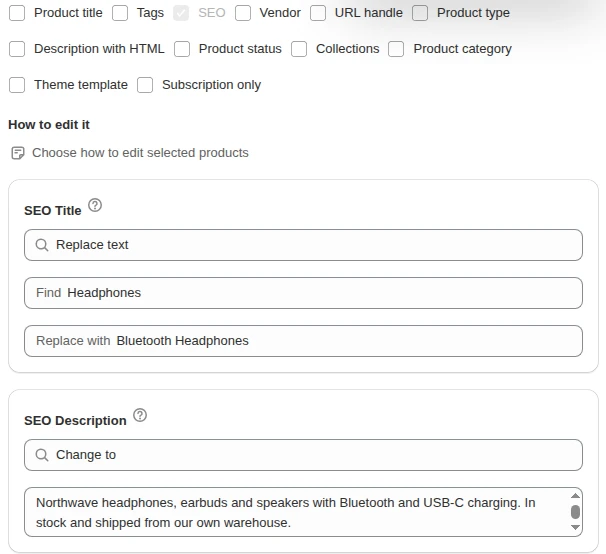
9. Titles and descriptions left to defaults or duplicated. A blank title tag falls back to the content title plus your shop name, which is fine if that’s what you’d write anyway. Problems start when many products share near-identical titles or have no meta description. Shopify’s guidance: a unique, descriptive title of 60 characters or fewer with the main keyword near the start, and a unique meta description for every page. Fix: edit them under Search engine listing on each product, or ask Sidekick for a draft. For a whole catalog, our Bulk Product Edit app can set SEO titles and descriptions, add text to their start or end, or find and replace across the products a filter selects; the steps are in bulk edit SEO titles.
10. Changing handles too often. Shopify notes that a product’s URL handle can be edited, but editing it too often can stop the product from showing in search results. Fix: set the handle once, keep it short and descriptive, and create a redirect whenever you do change it.
Check your store in 20 minutes
- Search
site:yourstore.comin Google. No results means mistake 1, 2 or a brand-new store; Shopify notes that Google indexes changes within 48 to 72 hours but can’t be forced. - Open
yourstore.com/robots.txtand compare it with a default store’s. If someone replaced it, find out why. - In Search Console, open the pages report and look at which pages are excluded and why, before acting on any message.
- Open your five best-selling products and three main collections: own description, more than a few lines, unique title and meta description.
- Export your products and look for duplicate SEO titles in the spreadsheet.
- If you’ve migrated, test ten old URLs from your previous site and confirm each lands on the right page.
For a full audit, follow the Shopify SEO audit steps; the crawl, speed and structured data side is in Shopify technical SEO. The Shopify SEO hub has the rest of our guides.
FAQ
Why isn’t my Shopify store showing on Google? Shopify lists five common reasons: the store is new, in private mode, on a trial, recently migrated without redirects, or short of relevant content. Shopify calls the last one the most common reason a store doesn’t rank well.
Should I edit my Shopify robots.txt? Shopify’s default robots.txt is set up for SEO and works for most stores. Editing it is an unsupported customization that Shopify says can cost all your traffic if done wrong, so leave it to a developer with a specific reason.
Is “Indexed, though blocked by robots.txt” a problem? Shopify describes the message as normal and usually not a cause for concern, because many pages are blocked on purpose. In most cases no action is needed.
How long should Shopify product descriptions be? Shopify recommends at least 250 words of descriptive text on every page and at least 500 words on informational pages and blog posts, written in your own words rather than copied from the manufacturer.