Shopify SEO Audit: A Step-by-Step Procedure With Free Tools

A Shopify SEO audit checks five things in order: whether Google can find and index the store, whether every important page has a unique title and description, whether robots.txt and hidden pages block only what they should, how fast real visitors see the pages, and whether content and internal links match what people search for. All of it can be done with free tools: Google Search Console, PageSpeed Insights, Shopify’s own reports and a site crawler of your choice.
The checks follow Shopify’s Help Center pages on SEO questions, crawling your store, robots.txt, hiding pages, keywords and web performance (read October 23, 2026). We run a technical check of our own sites every week, and this is the order we use.
Before you start: let your crawler in
Shopify lets you authorize your own crawlers and audit tools with Web Bot Auth: signed requests that the store can verify as coming from you.
- Go to Online Store > Preferences.
- In Crawler access, click Create signature.
- Give it a name, choose the domain and how long it is valid (up to 3 months), and click Create.
- Copy the Signature-Input and Signature values into your tool’s HTTP headers.
Signatures expire and cannot be renewed, so create a new one for each audit cycle. They only cover the storefront, not checkout. Search engines and AI crawlers index your store without any signature; this is only for your own tools.
Step 1: Is the store indexed?
Search Google for site:yourstore.com. If pages appear, Google is indexing the store. If nothing appears, Shopify’s Help Center lists the usual causes:
- the store is too new to have been indexed yet;
- the store is in private mode (password page);
- the store is still on a trial, and trial stores are not indexed;
- you migrated from another platform and the old URLs were not redirected.
Then verify the domain in Google Search Console and submit yourstore.com/sitemap.xml. Shopify generates the sitemap automatically, with separate sitemaps for products, collections, pages and blog posts, and updates it as you add content. Shopify’s Help Center says Google indexes changes automatically within 48 to 72 hours and cannot be forced; the URL inspection tool in Search Console lets you request it for a page.
In Search Console, open the pages report and note how many URLs are indexed compared with how many products, collections and posts you have. A large gap points to steps 3 and 5.
Step 2: Titles, descriptions and H1
Export a crawl of your store (or use Search Console’s URL inspection for a sample) and check each important page for:
- A unique page title of 60 characters or fewer with the main keyword near the start. Shopify accepts up to 70, but most search engines shorten longer titles.
- A unique meta description, around 160 characters, in plain language.
- One H1 that says what the page is. Shopify’s Help Center recommends checking how Google actually renders the page with the URL inspection tool rather than trusting the theme code.
- Alt text on product images.
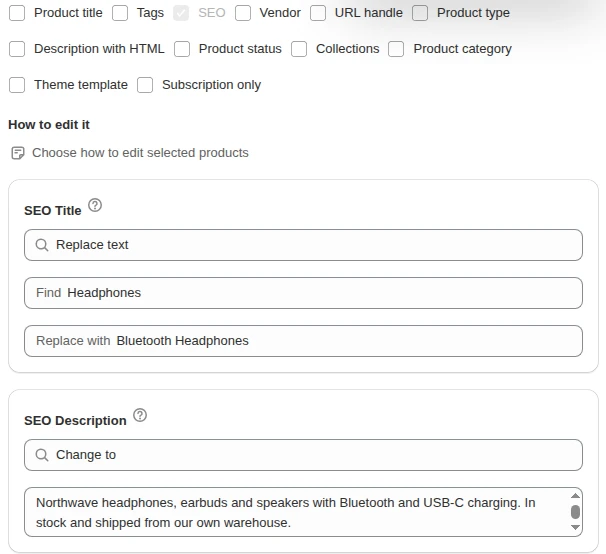
If a product’s meta description is empty, the snippet comes from other page text instead of words you chose. Fix the top sellers by hand in each product’s Search engine listing section. If the audit finds hundreds of products with missing or duplicate SEO fields, our Bulk Product Edit can set them, add text to their start or end, or find and replace across the products a filter selects, with a preview first; the steps are in bulk edit SEO titles. For what to write on product pages, see Shopify product page SEO.
Step 3: Crawl, robots.txt and hidden pages
Open yourstore.com/robots.txt. Shopify’s default file blocks pages such as the cart, and Shopify says the default works for most stores. If someone added a robots.txt.liquid template, read every rule: Shopify Support does not help with that file, and Shopify warns that a wrong rule can cost all your traffic.
Two Search Console messages Shopify explains:
- “Indexed, though blocked by robots.txt” on cart, search or filter URLs is normal: Google found a blocked URL some other way. Shopify says that if a normal page such as the homepage shows it, Google’s data is usually out of date.
- Excluded pages that you hid on purpose.
Then list what is hidden from search and check it is intentional. Shopify hides content in three ways: Unlisted product status (hidden from search, the sitemap, collections and storefront search), the seo.hidden metafield set to 1 (hidden from sitemaps, search engines and store search), and noindex code in theme.liquid. A product accidentally left unlisted after a launch can be the reason a page never ranks.
Redirects matter here too: every URL you deleted or renamed should redirect, and Shopify allows up to 100,000 URL redirects (20 million on Plus). The technical side of crawling (duplicate URLs, filters, canonical tags) is covered in Shopify technical SEO.
Step 4: Speed and Core Web Vitals
Open Shopify’s Web Performance reports, which measure Core Web Vitals (loading, layout stability, responsiveness) from real visitors. Then run your homepage, a collection and a product page through PageSpeed Insights for detail.
Shopify names three things as the biggest factors in store speed: the theme, the apps installed, and third-party code added by hand, including tag managers. So the audit questions are: is the theme up to date, which apps load scripts on every page and still earn their place, and which tags in the tag manager are unused? Shopify also warns that many third-party scanner recommendations are already handled by Shopify or do not apply, so do not chase every item on a generic speed report. Our guide to Shopify speed optimization goes deeper.
Step 5: Content and internal links
In Search Console’s performance report, sort queries by impressions and look for:
- queries with many impressions and a position between 8 and 20, where a better title or more content could move the page up;
- two of your pages showing for the same query, which splits the signal between them;
- important collections or guides with no internal links pointing to them.
Shopify’s keyword guidance is to use keywords in four places: page titles, meta descriptions, alt text and body content, in natural sentences rather than lists.
Turn findings into a fix list
End the audit with a short, ordered list:
- Anything that blocks indexing (private mode, accidental
noindex, broken robots rules). - Missing redirects from old URLs.
- Titles and descriptions on the top 50 pages by traffic or revenue.
- Speed items from the theme and apps.
- Content and internal-link work, page by page.
Re-run the audit after the fixes and then quarterly. The full checklist sits in the Shopify SEO hub.
FAQ
How do I audit my Shopify store’s SEO for free? Use Google Search Console for indexing and queries, PageSpeed Insights and Shopify’s Web Performance reports for speed, and a crawl or URL inspection for titles, descriptions and H1s. Check robots.txt and hidden pages by hand.
Why is my Shopify store not showing on Google? Shopify lists the common causes as a store that is too new, private mode, a trial store, or missing redirects after a migration. Submit your sitemap in Search Console to help Google find the pages.
Is “Indexed, though blocked by robots.txt” a problem? On cart, search and filter URLs it is normal and needs no action. If a normal page such as the homepage shows it, Shopify says Google’s data is usually out of date.
How do I stop an SEO crawler from being blocked on Shopify? Create a Web Bot Auth signature under Online Store > Preferences > Crawler access and add its headers to your crawler’s requests. Signatures last up to 3 months.