Shopify Welcome Email Series: Set Up the Native Templates

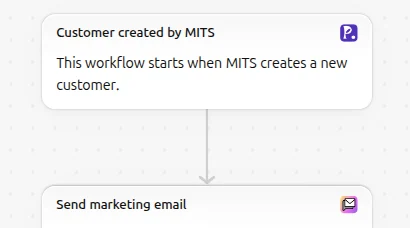
A Shopify welcome email series is a marketing automation in Shopify Messaging that greets new subscribers with a discount email, then two brand emails and a reminder if they haven’t bought. It starts when someone subscribes through a form on your online store, and you create it on a desktop, because the mobile app can’t build welcome automations.
The welcome templates
Shopify’s Help Center page on creating marketing automations (read October 23, 2026) lists two welcome templates in the Welcome new subscribers group:
| Template | What it sends | Trigger |
|---|---|---|
| Welcome new subscribers with a discount email | One email with a discount | A customer subscribes with a form on your online store |
| Welcome new subscribers with a discount series | An email with a discount, then 2 brand-building emails; if no purchase is made, a discount reminder | The same |
Shopify’s changelog post on welcome email series templates (May 9, 2023, read October 31, 2026) describes a second four-email series, “brand story with discount”: three emails that share your story, then a discount email for subscribers who haven’t bought yet. The current Help Center page doesn’t list it, so open Create automation and see which templates your store offers before planning around that one.
Which to pick depends on what your signup form promised. If it said “10% off your first order”, the visitor expects the code now, and the discount series delivers it first. If the form promised news or early access, a series that opens with a discount sends an offer the form never mentioned, and the single welcome email, rewritten as an introduction, fits better.
Set it up
- In the admin, go to Apps > Messaging and click Automations.
- Click Create automation and choose the welcome template.
- Click Edit email and change each email: subject line, text, images and the discount.
- Optional: click Send test, enter the addresses to send to and click Send.
- Click Turn on, and in the dialog select Turn on; or select Save without turning on to finish later.
To change timing later, open the automation, click Edit workflow, make the change and click Apply changes; to change an email, click Edit, then Save. Editing also needs a desktop. Turning an automation off cancels any workflow waiting in a delay, so people in the middle of the series receive nothing further.
Messaging includes 10,000 free emails a month on the Basic, Grow, Advanced and Plus plans, shared across all email you send, and welcome emails count toward them. A subscriber who goes through the whole discount series receives up to four emails, so 1,000 new subscribers a month use at most 4,000 of the 10,000. Beyond the free emails, extra ones cost $1 USD per 1,000 up to 300,000, then $0.65 USD and, past 750,000, $0.55 USD per 1,000.
What to write in each email
Shopify’s own writing best practices set useful limits: keep an email under 200 words or about 20 lines, put the important part within the first two scrolls on mobile, keep subject lines to 3 to 6 words or under 50 characters, and never put the offer only in an image, because some email clients block images. Within those limits, this is the plan we would write to:
- The discount email delivers what the form promised. The code goes in the text, near the top, with one button to the products it applies to. If the code expires, the subject line says when.
- The first brand email introduces the store: who makes the products, where they come from, and one popular product with a line on why customers buy it. Shopify’s guidance for a first email suggests the same, introducing yourself and featuring a popular product.
- The second brand email answers the questions that hold back a first order: delivery times, the return window and how to reach you, each linked to your policy pages.
- The reminder goes only to people who haven’t bought. It repeats the code and its end date and nothing else.
Give each email one idea and one button. Add preview text to each email that adds to the subject line instead of repeating it; Shopify’s example pairs “Check out our new spring gear” with “Don’t miss out on 10% off shorts, tanks, and more for the warm weather ahead.”
Shopify also recommends a custom sender email address for deliverability and brand recognition. Set it before turning on the series, so the first email a subscriber gets comes from your own domain.
The signup form it needs
The series needs a form on your online store that collects subscribers. Shopify suggests its Shopify Forms app, and a theme newsletter section collects addresses too; our guide to adding a newsletter signup compares the options. Popups are another way to collect addresses, and Pop Up Discount, our popup app, offers a discount code in exchange for an email address and sends the code to the visitor through Shopify Flow. Before you rely on any form, sign up with a test address and check that the first welcome email arrives.
For the list of all templates, see Shopify email automation, and for ways to fill the list, grow your email list. Other guides are in the email and popups hub.
FAQ
Is the welcome series free? Messaging gives every Basic, Grow, Advanced and Plus store 10,000 free emails a month, and welcome emails count toward them. Past that, extra emails cost $1 USD per 1,000 up to 300,000.
Can I change the discount? You change it in the email editor: click Edit email when you create the automation, or Edit on an existing one, and replace the discount in the email.
Does it send to people who buy before subscribing? The templates trigger on a form signup, so a customer who never subscribes through a form doesn’t start the series.
How many emails should a welcome series have? Shopify’s discount series has four: the discount, two brand emails and a reminder for people who haven’t bought. Start with the template as it is and change the number only after a few weeks of reports.