Shopify Marketing Automation: Free Tools vs Apps (2026)

Shopify marketing automation is a set of messages your store sends on its own when a customer does something: subscribes, leaves a checkout, or stops buying. In 2026 Shopify runs these from two free apps. Shopify Messaging sends the emails and texts, and Shopify Flow handles anything that involves another app or a custom rule. A store with a few thousand subscribers can usually run its first automations without paying for a marketing app at all.
Shopify facts below come from the Shopify Help Center and the Shopify Changelog; prices and ratings of apps were read on their App Store listings on October 23, 2026.
Where automations live in Shopify now
If you set up automations a year ago, the menus around them have changed twice:
- March 24, 2026. Automations that send Shopify Messaging emails moved into the Shopify Messaging app. Automations that use marketing activities from other apps moved into Shopify Flow. Shopify said no action was needed and existing automations kept running (changelog).
- May 19, 2026. Shopify Messaging added SMS automations, with templates for abandoned carts, abandoned checkouts and browse abandonment. You find them under Shopify Messaging > Automations, and the SMS spending limit under Shopify Messaging > Settings (changelog).
- June 17, 2026. The Marketing tab in the admin was renamed Growth. It now holds Campaigns, Attribution and Campaign Autopilot, which is in early access. Automations are no longer there (changelog).
Shopify Messaging is the app that used to be called Shopify Email. If a guide tells you to open Marketing > Automations, it was written before March 2026.
The automations most stores turn on first
By default, Shopify sends marketing automations only to customers who subscribed to marketing. Each email they send counts toward your monthly Shopify Messaging allowance, with one exception: abandoned checkout emails are always free.
| Automation | Starts when | Channel | Counts toward free emails |
|---|---|---|---|
| Welcome | A customer subscribes, for example through a signup form | Yes | |
| Abandoned checkout | A customer starts checkout and leaves before paying | Email, SMS | No, always free |
| Abandoned cart | A customer adds to cart but never reaches checkout | Email, SMS | Yes |
| Browse abandonment | A customer views products and leaves | Email, SMS | Yes |
| First-purchase upsell | A customer places a first order | Yes | |
| Win-back | A customer has not bought for a while | Yes |
Start with abandoned checkout, because the person was one page from paying and the email costs you nothing. To change how long it waits before sending, click the automation in Messaging and then Edit workflow. Welcome comes second: it is the email a new subscriber is waiting for, and if your signup form promised a discount, the code goes here. Win-back can wait until you have customers who have been gone for a few months.
Shopify Flow: automation beyond marketing
A lot of the searches for “Shopify automation” are about running the store, and that is Flow’s job. Shopify Flow is free, made by Shopify, and rated 4.7 from 14,985 reviews. A workflow has a trigger (an order is paid, stock drops, a customer is created), conditions, and actions. Shopify ships hundreds of templates for tagging customers and orders, inventory alerts, fulfillment, returns and fraud checks, and Flow connects to apps such as Klaviyo, Slack and Google Sheets.
Two kinds of jobs belong in Flow rather than in Messaging:
- Anything that combines apps. For example, if your review app has a Flow trigger, Flow can tag every customer who leaves a 5-star review so a later campaign can thank them. Shopify’s help page says custom automations, and automations that include a third-party app, are built as Flow workflows.
- Actions that are not messages. Tag an order, add a note, or post to a Slack channel when a large order comes in.
Apps can add their own Flow triggers and actions, so check an app’s listing for Flow support before you buy it. If you plan to run more than one app, learn Flow before you buy another automation tool. Our guide to onboarding customers with Shopify Flow goes further.
What the native tools cost
Shopify Messaging includes 10,000 emails per calendar month at no charge. After that, Shopify charges $1 per 1,000 emails up to 300,000, then $0.65 per 1,000, and $0.55 per 1,000 above 750,000 (Shopify email pricing). Every recipient counts as one email, and unused emails do not carry over to the next month. Abandoned checkout automations are never counted. SMS is billed separately, and you cap it with the spending limit in Messaging settings.
A worked example: you have 2,000 subscribers and send them 4 campaigns a month. That is 8,000 emails. Welcome, abandoned cart, browse and win-back emails share the remaining 2,000, and abandoned checkout emails cost nothing. A store this size pays nothing for email until it adds a fifth campaign or its list grows.
When a marketing automation app is worth it
Several of the top search results for this topic are written by app vendors who rank their own app first and leave out the option you already have. Here is Shopify’s own app next to Klaviyo and Omnisend, two email apps with more than 3,000 App Store reviews each, as their listings showed them on October 23, 2026:
| Shopify Messaging | Klaviyo | Omnisend | |
|---|---|---|---|
| Free plan | 10,000 emails a month | Up to 250 active profiles, 500 emails a month | Up to 250 contacts, 500 emails a month |
| First paid step | $1 per 1,000 extra emails | Email from $20/month for 251–500 contacts; SMS from $15/month | Standard from $16/month for 500 contacts |
| Channels | Email, SMS, WhatsApp | Email, SMS, WhatsApp, mobile push | Email, SMS, web push |
| Price grows with | Emails sent | Active profiles | Contacts |
| App Store rating | 4.8 (4,713 reviews) | 4.7 (3,404 reviews) | 4.7 (3,195 reviews) |
Klaviyo and Omnisend price by the size of your list, while Shopify Messaging prices by the number of emails you send. A list of 2,000 contacts puts you on a paid Klaviyo or Omnisend plan before you send anything, while Shopify Messaging stays free in the example above.
A paid app earns its price when your plan depends on what these apps lead with on their listings:
- Klaviyo lists predictive analytics, send-time optimization and A/B tests across channels.
- Omnisend lists segments built by describing them in plain words, product recommendations and web push.
- Both bill by list size, so they suit stores whose revenue per subscriber covers that cost.
If you would not use any of these yet, stay native and spend the time on your signup form, which feeds every automation above. When you outgrow it, read our guide to connecting Klaviyo with Shopify.
Set up your first three automations
- Go to Apps > Messaging > Automations. Your old automations from the Marketing tab are already here. Create automation opens the template list.
- Turn on abandoned checkout. Check the delay and the email content, then send yourself a test. If you still use the old abandoned checkout email under Settings > Checkout, it keeps working until Shopify removes it. Switching to the new automation is permanent: you cannot go back to the old email, and your old settings carry over.
- Turn on the welcome email. Put the discount you promised at signup in the first lines and add one link to your best-selling collection.
- Add win-back once you have customers who have not ordered in a few months.
- Grow the list that feeds all three. Shopify Forms, Shopify’s free app, adds inline and popup signup forms. If you want a discount popup, our app Pop Up Discount turns a signup into a Shopify customer and sends the discount code through Shopify Flow.
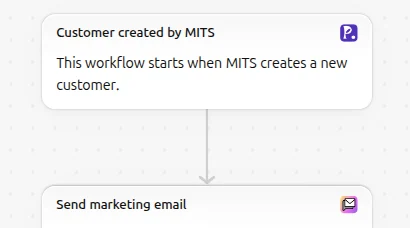
Our email and popups guide covers signup forms and welcome offers in more detail.
Mistakes to avoid
- Two tools sending the same email. If you install Klaviyo or Omnisend, turn off the matching Shopify automation. Otherwise one abandoned checkout gets two reminders from two senders.
- The same discount in every automation. Customers who learn that leaving checkout earns 10% start leaving checkout on purpose. Keep discounts for welcome and win-back, and let the abandoned checkout email remind people of what they picked.
- Expecting automations to reach everyone. Only customers who agreed to marketing get them, unless you change the audience of the abandoned checkout email to all customers. A low send count usually means a small subscribed list, so look at your forms and checkout consent box before you look at the emails.
- Following a pre-2026 tutorial. Menu paths changed twice this year. Look for Shopify Messaging, Shopify Flow and the Growth tab.
More on recovering carts: Shopify abandoned cart recovery and Shopify email automation.
Frequently asked questions
Is Shopify marketing automation free? The automations themselves are free. Emails come out of the 10,000 free emails Shopify Messaging includes each month, then cost $1 per 1,000. Abandoned checkout emails are always free. SMS is paid per message, with a spending limit you set.
Where did Marketing > Automations go? Since March 24, 2026, email automations are in the Shopify Messaging app and automations that use other apps are in Shopify Flow. The Marketing tab itself became Growth in June 2026.
Can Shopify send automated SMS? Yes. Since May 2026 Shopify Messaging has SMS automations for abandoned carts, abandoned checkouts and browse abandonment, and you can build your own.
Do I need both Flow and Messaging? For emails and texts to subscribers, Messaging is enough. Add Flow when an automation has to react to another app, tag customers or orders, or do something that is not a message.